13 - Mouse Events
In this lesson, you will create a MouseEvents MonoBehaviour Script that will allow you to send messages between Game Objects when the mouse cursor interacts with them.
Challenge: Create a MouseEvents Test Scene
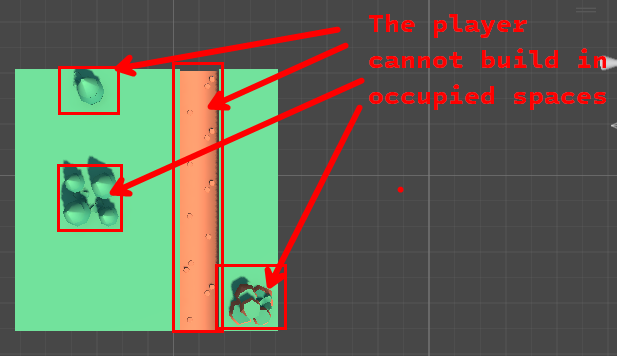

Start by creating a test scene where you will be able to test your MouseEvents script in isolation. In this scene, you will create a small map 5x5 Grid. On the Grid you will have tiles that you the player can interact with (empty tiles) and tiles that the player cannot interact with (occupied tiles).
- Create a new scene in your Test Scenes folder. I recommend naming it Tile MouseEvents Test Scene
- Create a 5x5 Grid of Tiles
- Ensure that you have at least 1 empty Tile that can be built upon
- Ensure that you have at least 1 blocked Tile that cannot be built upon
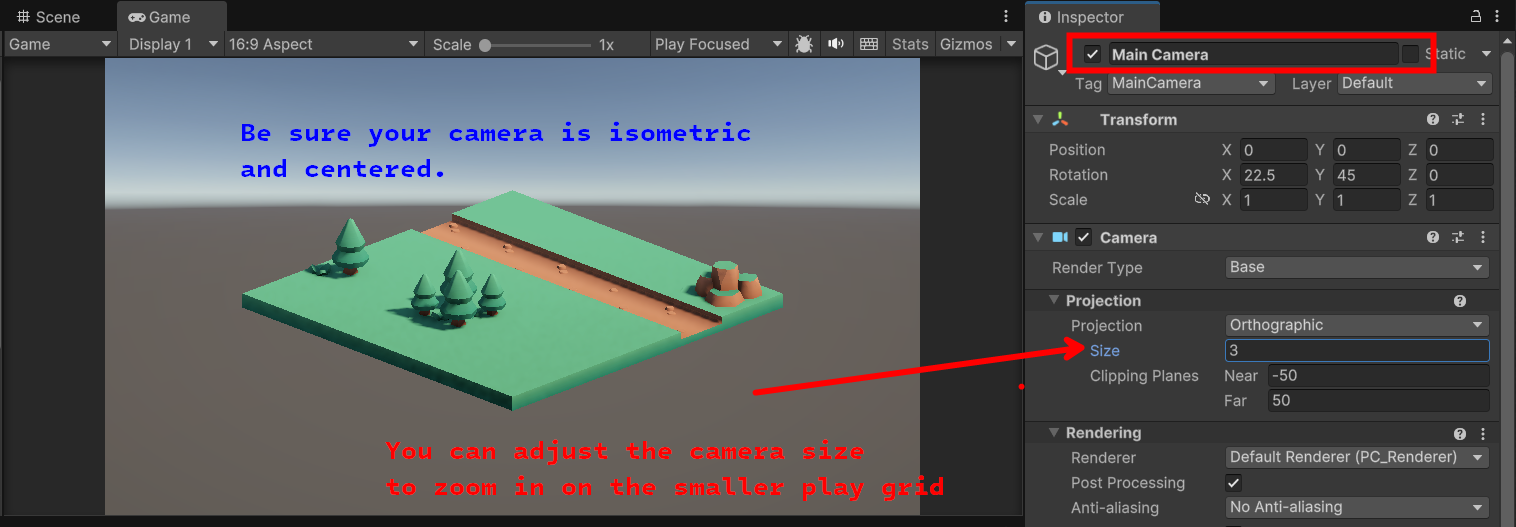
- Adjust your Main Camera to an Isometric Perspective with your Grid centered
When you're finished you should have a Scene that looks similar to the picture below:
MonoBehaviour.OnMouseEvents
Unity provides several methods that can be used to detect mouse events that occur on Game Objects that have a Trigger Collider. To make use of this, you will write a script that detects Mouse Events that events.
Create a MouseEvents Script
- Read the Friendly Manual: Unity - Scripting API: MonoBehaviour.OnMouseEnter()
- Create a MonoBehaviour Script called
MouseEvents - Add an
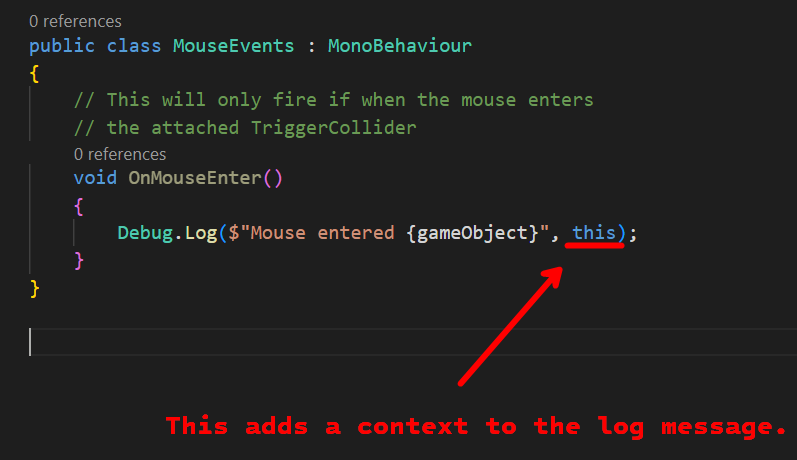
OnMouseEnter()method to the script - In
OnMouseEnter()add aDebug.Logmessage to help test the script - In
Debug.Log, specifythisas the context object. This will allow you to click on it in the console to see the attached Game Object.
Attach the Script to the Tile's Model
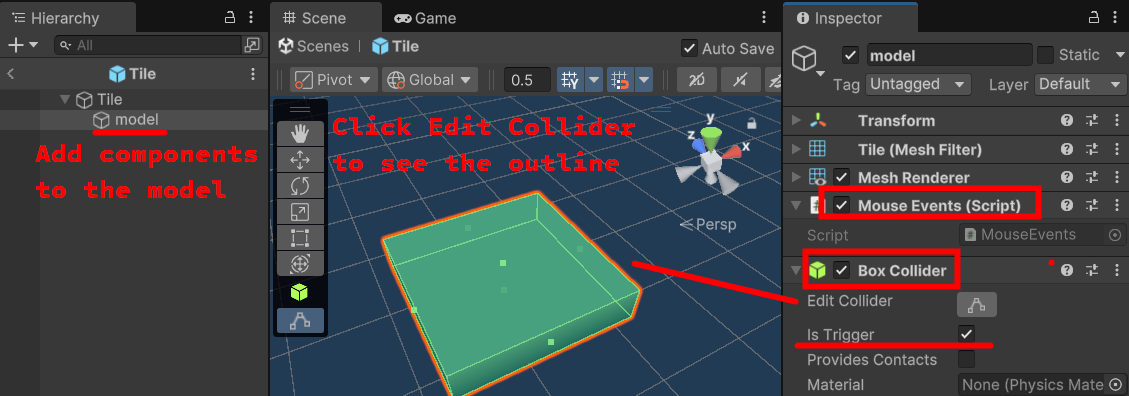
For a Game Object to receive mouse events, it must have a Trigger Collider attached. When the mouse cursor interacts with that Trigger Collider any MonoBehaviours that are attached to the same Game Object have their appropriate OnMouseXYZ method invoked.
- Open your Tile Prefab (this should be your empty tile that can be built upon)
- Add the

MouseEventscomponent to themodelchild component - Add a
BoxCollidercomponent to themodelchild component - Click the
Edit Collidericon to verify the shape of the collider matches your model
When you have finished, your Tile Prefab should look similar to the image below:
Test MouseEvents
Test to ensure your MouseEvents are being triggered
- Enter Play Mode
- Move the mouse over the empty tiles
- Click on the log message in the Console to highlight the context in the Hierarchy
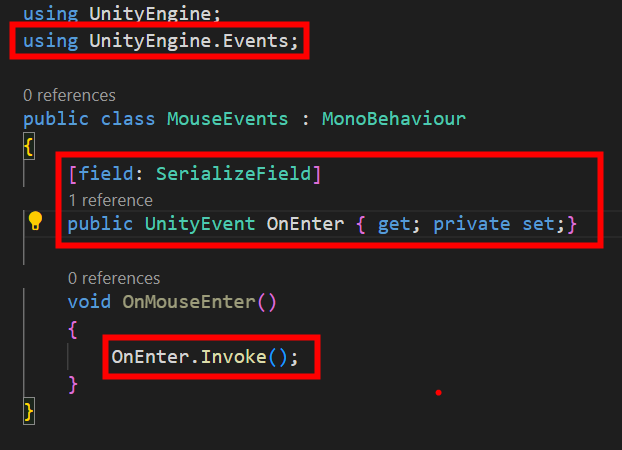
OnEnter UnityEvent
Next, you will add a UnityEvent so the parent Tile can listen to the mouse events and perform an action.
- Add a
UnityEvent OnEnterto yourMouseEventsscript - When the
OnMouseEntermethod triggers, it should invoke theOnEnterevent
UnityEvents in the Inspector
One of the biggest benefits of a UnityEvent is the ability to add functionality through the Inspector. To test that your event is firing properly, you can attach an action to it in the Inspector.
- Locate the
OnEnterevent in the Inspector
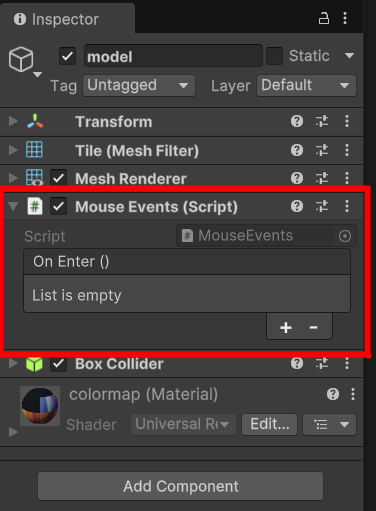
- Click the
+icon to add an event listener

- Attach the
Tileparent object to the new listener
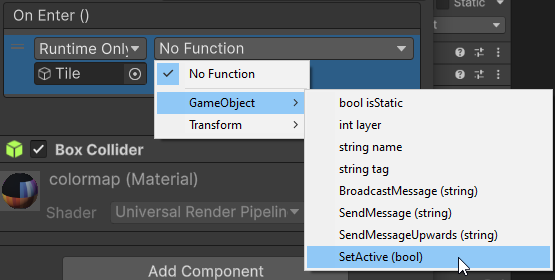
- Click the Function drop down
- Select, Game Object > SetActive(bool)
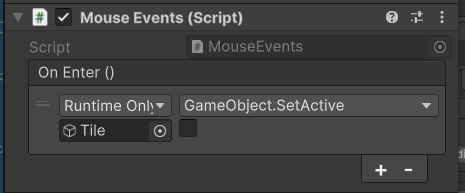
- If necessary, UNCHECK the box below the
SetActivefunction.

- Enter Play Mode
- Move the mouse over your tiles
If all went well, the Tiles should deactivate in the Hierarchy. This is because you have registered Tile.SetActive(false) to be invoked when the OnEnter event is triggered.
Challenge: Change the Tile Name On Enter
- Remove the
SetActiveevent from the event list - Register a listener that changes the
Tile's name in the Hierarchy to "MouseEntered"

When you have finished, your scene should act similar to the video below:
Challenge: OnMouseExit and OnMouseUpAsButton
- Read the Friendly Manual: Unity - Scripting API: MonoBehaviour.OnMouseExit()
- Read the Friendly Manual: Unity - Scripting API: MonoBehaviour.OnMouseUpAsButton()
- Add an
OnExitUnityEvent to yourMouseEventsscript - Add an
OnClickUnityEvent to yourMouseEventsscript - Use
OnMouseExittoInvokeOnExit - Use
OnMouseUpAsButtontoInvokeOnClick - When exited, the Tile's name in the Hierarchy should be "Exited"
- When clicked, the Tile should be set to inactive

When you have finished this challenge, your Test Scene should act similar to the video below:
What's Next
With a MouseEvents implemented and ready to use, you can now create a TileCursor that will track which tile the player will interact with when the press the mouse button.